


Trace Image
Basic Usage
To use the image tracing tool then select your image and choose the tracing type. Adjust the noise and thresholds to change how tracing occurs. The view will display a preview of the traced vectors. Once you are happy press the Trace button to complete the action.
You can watch a tutorial on tracing here:
Watch tutorial: How to Trace a BitmapOptions
Tracing Type
There are two tracing types:
-
Black & White
-
Colour
When you choose to do black and white tracing then the image is converted to grayscale before tracing. In black and white mode then you can choose the areas to trace by adjusting the threshold.
When doing colour tracing then you can select the colours you wish to trace around. The tracing tool will create boundaries around the coloured regions specified.
Corner Fit
The Corner Fit slider is used to adjust the extent to which is the traced lines fit to the corners.
Noise Filter
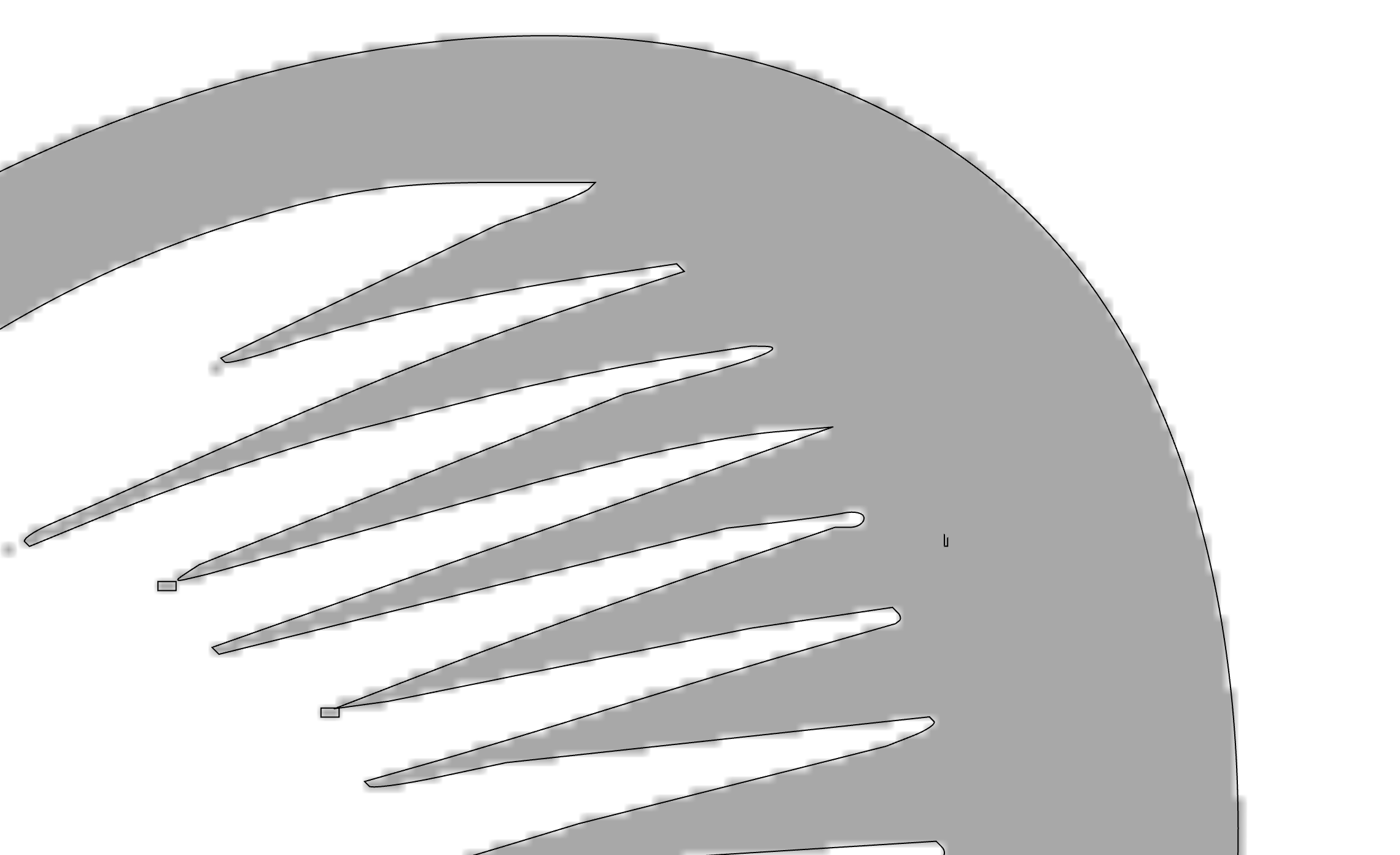
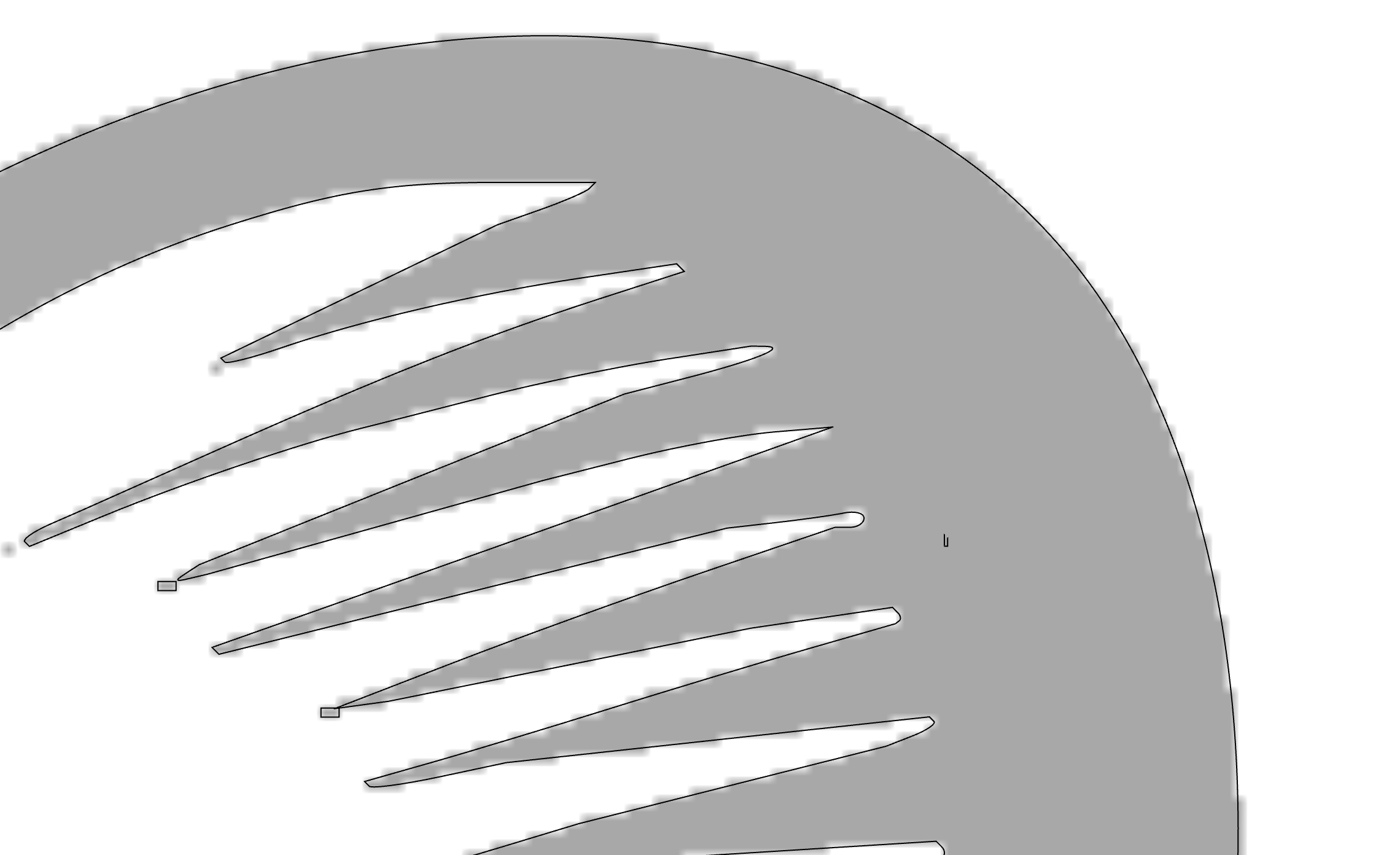
The noise filter can be used to remove small areas of noisy tracing. A higher values means more noise
Fade Bitmap
It can be beneficial to fade the bitmap you are tracing in order to make it easier to see the generated geometry. This options allows you to use a slider to adjust the fading.
Group Vectors
If this is turned on, then created vectors are grouped.